
 7 Days to DieMods & Plugins
How to install mods on a 7 Days to Die server
Add mods to your 7 Days to Die server from the Mods tab, know which ones players need too, and turn them off or remove them safely.
Your 7 Days to Die server can run mods: small tweaks, new items, server tools or whole overhauls. Here's how to add them from your dashboard, which ones your players need too, and how to take them off again.
How 7 Days to Die mods work
Each mod is a folder with a file called ModInfo.xml inside it. The server loads every mod folder in its Mods folder when it starts. Mods come in two kinds, and the difference matters:
- XML-only mods, often called modlets, change the game's own settings files. Easy Anti-Cheat can stay on for them, and many only need to be on the server.
- Mods with their own code carry
.dllfiles. Most of these need Easy Anti-Cheat off on the server, and usually every player needs the same mod and must start their game without Easy Anti-Cheat.
Check each mod's own page for which kind it is, whether players need it too, and which game version it was made for.
Add a mod
- Download the mod from its author's page.
- Open the Mods tab in your dashboard and press Add mod.
- Upload the mod as a
.zip. Its folder withModInfo.xmlcan be at the top of the zip or one folder down; the server finds it either way. - The server unpacks it into its
Modsfolder. A zip with noModInfo.xmlin it is refused, and nothing is left behind. - Restart the server. The mod loads as it starts.
If the mod has its own code and its page says Easy Anti-Cheat must be off, turn Easy Anti-Cheat off in the Startup tab before the restart.
The Console lists each mod as it loads, as Mod loaded: with its name and version. Typing version into the console lists every mod the running server has loaded.
Disable or remove a mod
Each mod has its own row in the Mods tab:
- Disable stops it loading without losing it. Its folder moves out of the
Modsfolder, and Enable moves it back. - Delete removes it for good.
Restart the server after either change.
Removing a mod that added blocks or items can leave gaps in a world built with it. Make a backup in Backups before you remove one from a world you care about.
The game's own mods
Every server comes with three mods from the game itself in its Mods folder, one of them the Harmony library many code mods rely on. They're part of the game, so the Mods tab doesn't list them.
Overhauls
Overhaul mods are installed the same way. Each is made for a particular game version, and those with their own code usually need Easy Anti-Cheat off and the mod on every player's game. Before installing one:
- Check the overhaul's own page for the game version it supports, and set your server to that version (see 7 Days to Die game version and experimental).
- Start it on a new save name in the Startup tab rather than an existing world.
- If your server struggles after adding one, a bigger plan gives it more room: see our 7 Days to Die plans.
Checked against 7 Days to Die V3.4.0 (b9), October 2026.
Related guides
- How to make a 7 Days to Die server
- How to connect over SFTP, for uploading many mods at once
Related guides
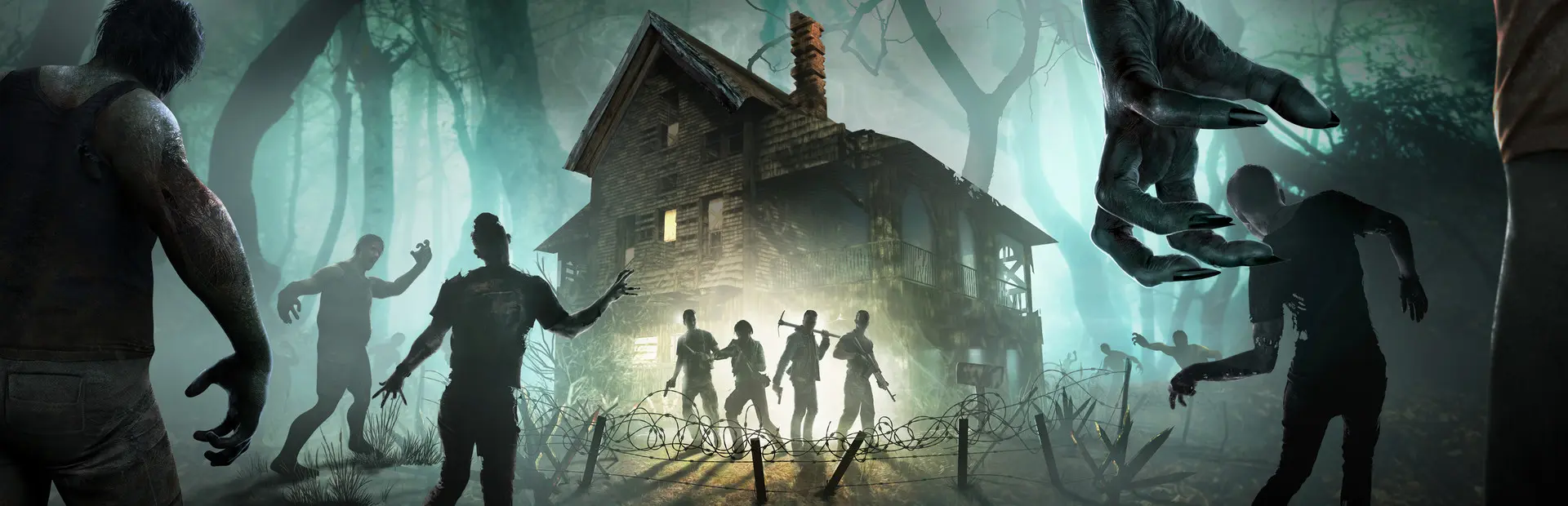
How to make a 7 Days to Die server
Start your 7 Days to Die server, get friends in by name or IP, pick Navezgane or a random world, add mods and keep your saves backed up.
6 min read Terraria
Edit tModLoader Mod Config on Your Server
Change a tModLoader mod's server settings by making its ModConfigs JSON on your PC or editing it in File Manager, and fix changes that don't stick.
4 min read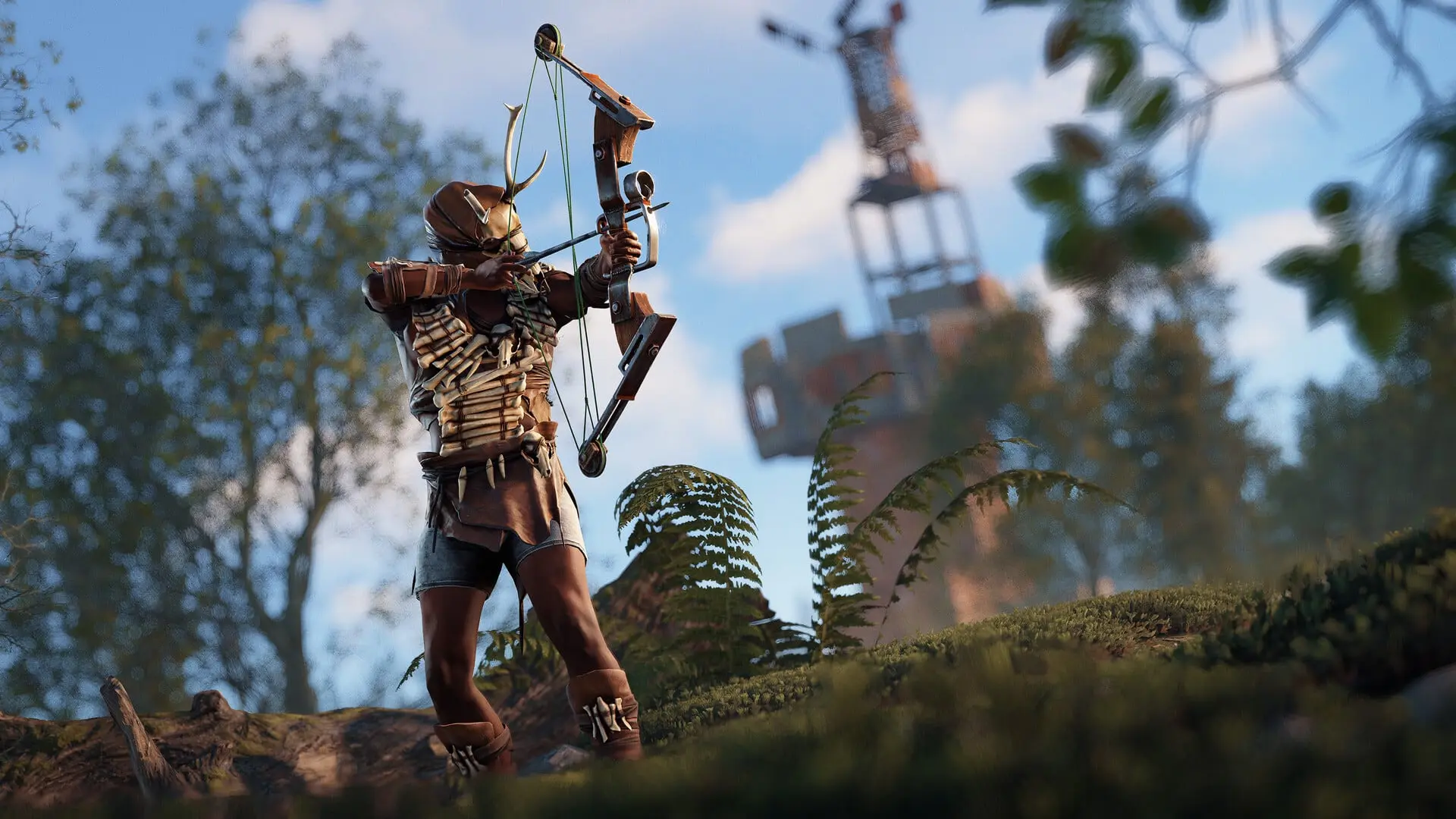
Install Harmony Mods on Your Rust Server
Add a Harmony mod to your Rust server: upload the DLL to the HarmonyMods folder, load it with harmony.load, and unload it again.
4 min read
7 Days to Die servers aren't on sale yet. See the games we host now.